
Meraki Network Integration
Overview
Section titled “Overview”The Meraki Network Integration feature allows you to link individual locations in LogCentral to your Cisco Meraki networks. This integration enables you to manage network settings and monitor connectivity status directly from your location dashboard.
What is Meraki Network Integration?
Section titled “What is Meraki Network Integration?”Cisco Meraki is a cloud-managed networking solution. By integrating Meraki with LogCentral, you can:
- Connect specific locations to their corresponding Meraki networks
- View connection status at a glance
- Manage network settings from your location details page
- Monitor which networks are linked to which locations
Accessing Meraki Network Integration
Section titled “Accessing Meraki Network Integration”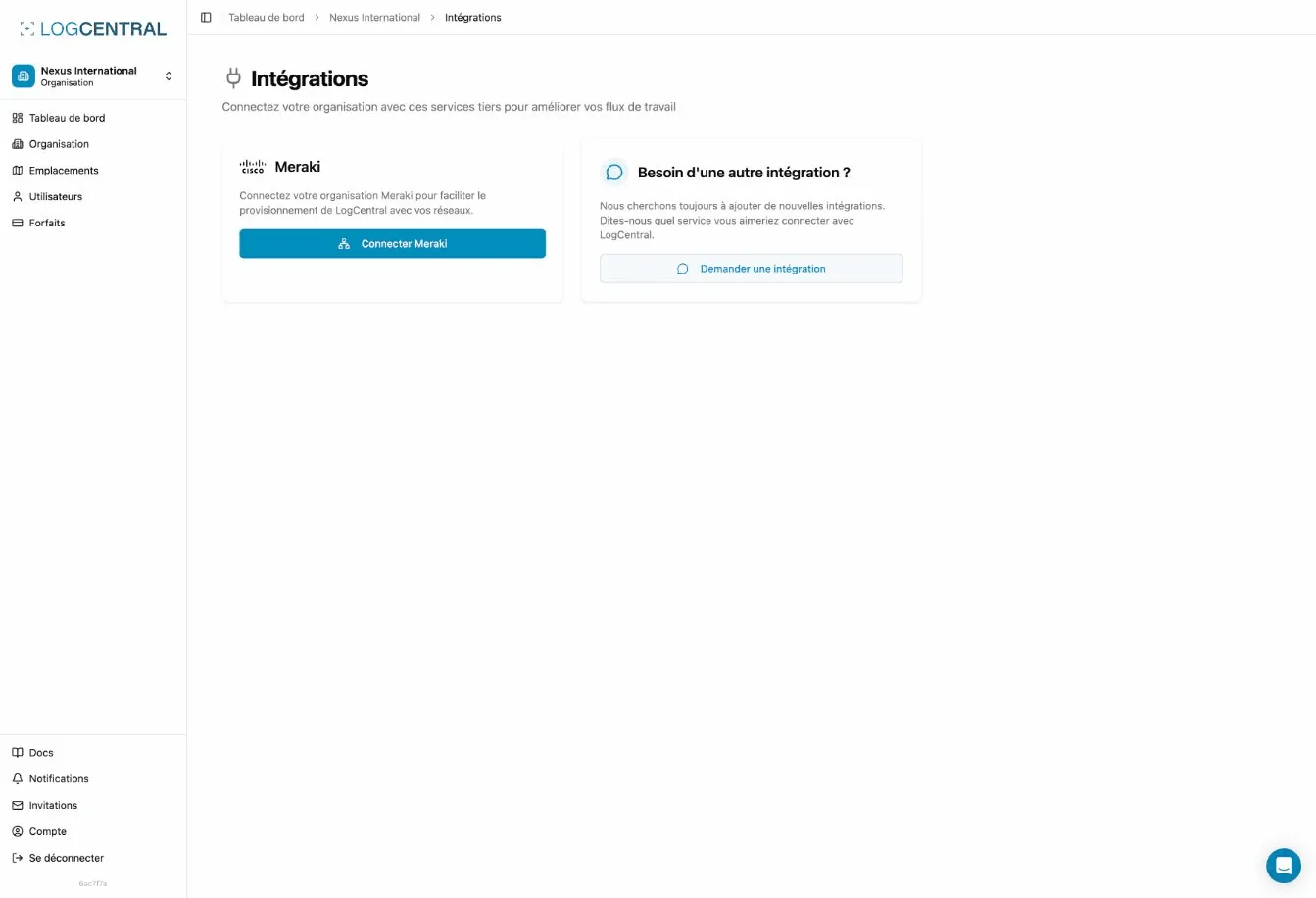
To access the Meraki Network Integration feature:
- Navigate to your organization dashboard
- Select the location you want to configure
- Go to the location details page at
/organizations/:orgId/locations/:locationId/meraki-integration
The integration status is displayed on the location details page through the Meraki Integration Card, which shows:
- Connection Status: Whether the location is connected to a Meraki network
- Network Name: The name of the connected Meraki network (when linked)
- Action Buttons: Options to connect or manage the integration (based on your permissions)
Understanding the Integration Card
Section titled “Understanding the Integration Card”The Meraki Integration Card provides a quick overview of your network connection:
When Not Connected
Section titled “When Not Connected”- Displays “Not Connected” status
- Shows a description of the integration feature
- Provides a connect button (if you have management permissions)
When Connected
Section titled “When Connected”- Shows “Connected” status
- Displays the connected Meraki network name
- Provides a manage button to adjust settings (if you have management permissions)
Permissions and Access
Section titled “Permissions and Access”Access to Meraki Network Integration features depends on your role:
- View Access: All users can see the integration status
- Management Access: Only users with location management permissions can connect, disconnect, or modify network links
The integration card automatically adjusts based on your permission level, showing or hiding action buttons accordingly.
Common Use Cases
Section titled “Common Use Cases”Linking a Location to a Network
Section titled “Linking a Location to a Network”When you have a physical location that corresponds to a Meraki network, you can create a link between them. This is useful for:
- Tracking which networks serve which locations
- Centralizing network management alongside other location data
- Maintaining an organized view of your infrastructure
Managing Network Connections
Section titled “Managing Network Connections”Once connected, you can manage the network link through the integration interface. This allows you to:
- Update network associations if your infrastructure changes
- Disconnect networks when needed
- View connection history and details
Monitoring Integration Status
Section titled “Monitoring Integration Status”The integration card provides real-time status information, helping you:
- Quickly identify which locations have active network connections
- Spot locations that need network configuration
- Ensure all your locations are properly integrated
OAuth Token Management
Section titled “OAuth Token Management”The Meraki integration uses OAuth authentication to securely connect to your Meraki networks. Organization owners and members with Meraki integration access can refresh OAuth tokens as needed to maintain the connection.
Technical Details
Section titled “Technical Details”Data Structure
Section titled “Data Structure”The integration uses the following key data points:
- Location ID: Links the network to a specific location
- Network ID: Identifies the Meraki network
- Network Name: Human-readable network identifier
- Creation Information: Tracks who created the link and when
- Update History: Records when the link was last modified
API Integration
Section titled “API Integration”The feature connects to Meraki’s API to retrieve network information and maintain synchronization between LogCentral and your Meraki dashboard.
Best Practices
Section titled “Best Practices”- Regular Review: Periodically check your network links to ensure they’re still accurate
- Permission Management: Assign management permissions only to users who need to configure network integrations
- Naming Conventions: Use clear, consistent network names in Meraki to make identification easier in LogCentral
- Documentation: Keep notes about which networks serve which locations for reference
Troubleshooting
Section titled “Troubleshooting”Integration Card Not Loading
Section titled “Integration Card Not Loading”If the integration card shows an error or doesn’t load:
- Check your internet connection
- Verify you have the necessary permissions
- Refresh the page
- Contact your organization administrator if the issue persists
Cannot Connect to Network
Section titled “Cannot Connect to Network”If you’re unable to establish a network connection:
- Ensure you have management permissions for the location
- Verify your organization has valid Meraki OAuth credentials
- Check that the Meraki network exists and is accessible
- Try refreshing your OAuth tokens through the organization settings
Related Features
Section titled “Related Features”- Location Details: View comprehensive information about your locations
- Organization Dashboard: Access all your locations and their integration status
- Storage Statistics: Monitor location-specific data alongside network information
Need Help?
Section titled “Need Help?”If you encounter issues with Meraki Network Integration or need assistance with setup, contact your organization administrator or LogCentral support team.
Keywords: meraki, network, integration, feature, guide, meraki network integration, page