
How to Send Your First Logs to LogCentral
Overview
Section titled “Overview”Welcome to LogCentral! This guide will help you get started with sending syslog data to the platform. LogCentral provides a centralized location for collecting, monitoring, and analyzing logs from your infrastructure.
Prerequisites
Section titled “Prerequisites”Before you begin sending logs, you’ll need:
- An active LogCentral account
- Access to an organization and location within LogCentral
- Network connectivity from your log sources to LogCentral
- Appropriate permissions to configure log forwarding on your systems
Understanding Locations
Section titled “Understanding Locations”In LogCentral, logs are sent to specific locations within your organization. Each location acts as a collection point for logs from related systems or environments. Think of locations as logical groupings—you might have separate locations for production, staging, or different data centers.
Configuring Authorized IP Addresses
Section titled “Configuring Authorized IP Addresses”IP Authorization (Required)
Section titled “IP Authorization (Required)”Before your devices can send logs to LogCentral, you must configure which IP addresses are authorized to send logs to your location. This is a mandatory security requirement—logs from unauthorized IPs will be rejected.
How to configure authorized IPs:
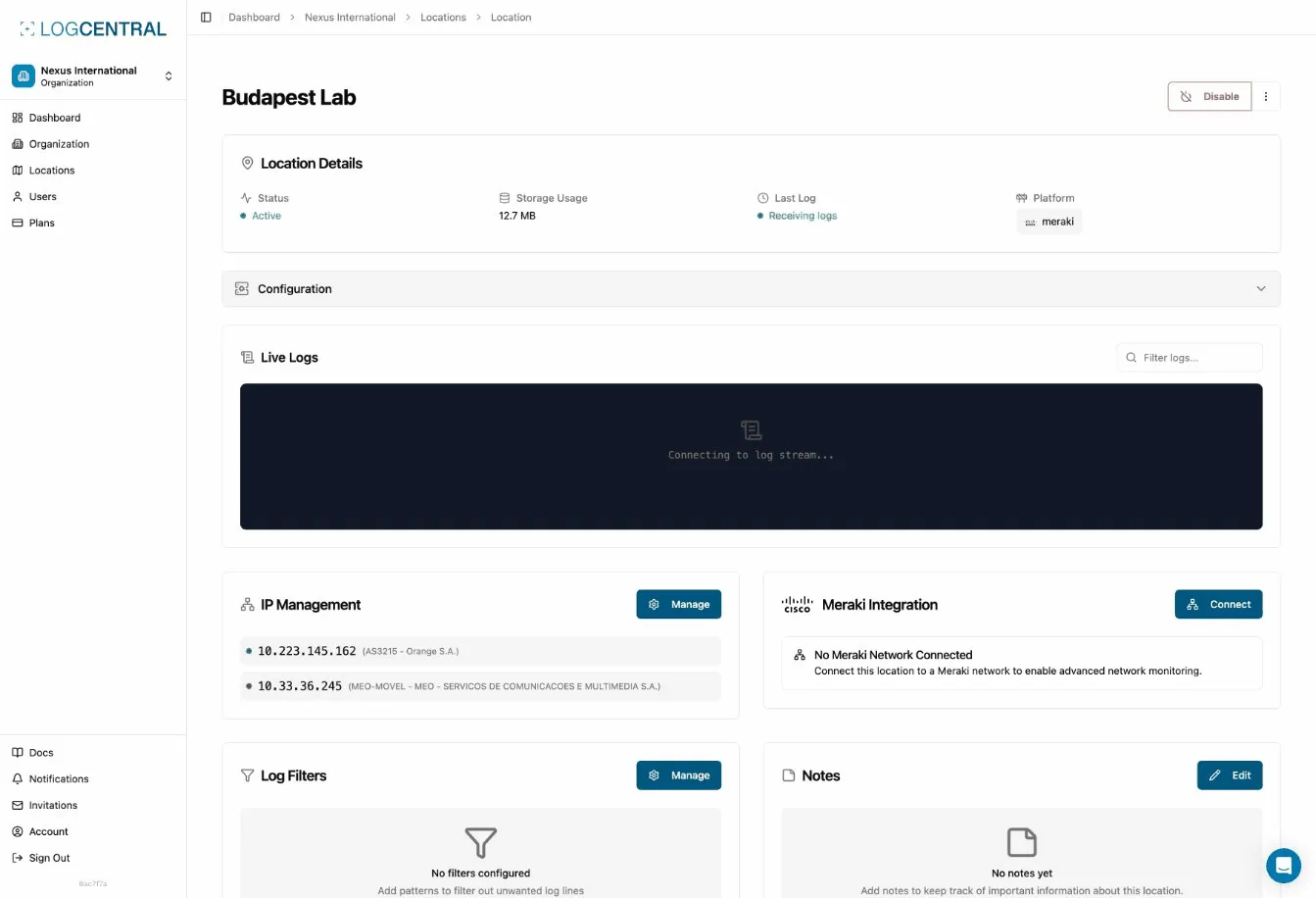
- Navigate to your location’s IP management settings
- Add the IP addresses of your devices (e.g.,
192.168.1.100) - Save your configuration
Why this is required:
- Ensures only your trusted devices can send logs
- Prevents unauthorized log submissions
- Meets security compliance requirements
- Protects your storage quota from unwanted traffic
Sending Your First Logs
Section titled “Sending Your First Logs”Once your location is configured, you can begin sending syslog data. LogCentral accepts standard syslog formats, making it compatible with most logging systems and applications.
Testing Your Configuration
Section titled “Testing Your Configuration”After setting up your log forwarding:
- Send a test log message from your system
- Check your LogCentral location to verify the log appears
- If logs don’t appear, verify your source IP is in the authorized list
Troubleshooting Common Issues
Section titled “Troubleshooting Common Issues”Logs not appearing:
- Verify your network can reach LogCentral’s ingestion endpoints
- Confirm your source IP is in the authorized IP list for your location
- Check your syslog configuration for correct destination settings
IP authorization issues:
- Verify the correct IP address is authorized (check your actual outbound IP, which may differ from your internal IP)
- For dynamic IPs, consider using the Meraki integration which automatically keeps IP addresses in sync
Configuration errors:
- Double-check your location identifier
- Ensure proper syslog format and protocol (UDP/TCP)
- Review the IP management settings for your location
Next Steps
Section titled “Next Steps”Once you’re successfully sending logs to LogCentral:
- Set up alerts to monitor important events
- Explore hot search to search logs in real-time
- Configure log filtering to reduce storage costs
- Set up additional locations for different environments
Need help? Contact your LogCentral administrator or refer to additional documentation for advanced configuration options.